Connecting the DCS with Hardware
Before connecting the DCS with hardware, the installation of "CAEN OPC Server" and "CAEN OPC Configurator" tools on the DCS pc is essential.
-
Download "CAEN OPC Server" and "CAEN OPC Configurator" from https://www.caen.it/download/?filter=OPC%20Server.
-
Start the "HV OPC Server Configurator" (with administrator rights) and click on "Add Entry".
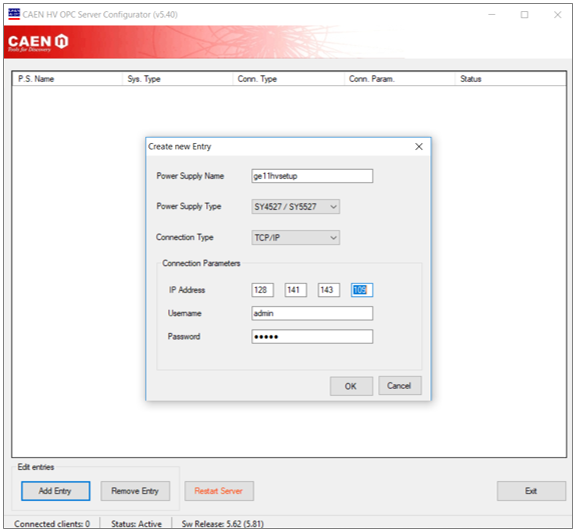
Consider following instructions in the process of filling in the information.
- Give the device name as the power supply name.
- Select SY4527 as the power supply type.
- Enter the IP address, user name and password of the mainframe.
- Click 'OK'.
- Click 'Restart Server' and it will show 'OK' in status if the connection is established and 'Pending' if it is not connected.
Power Supply Name
The mainframe name given in the DCS Device Editor Navigator (DEN). It is possible to have more than one mainframe created in the DEN. But the mainframe (hardware) will be connected only with the mainframe name given in the "OPC Server Configurator".
Finding the IP Address of the Mainframe
- Login to the mainframe via the web browser.
- Go to the 'Settings' menu and select the 'Networking' submenu.
- IP address can be seen under the address.
-
Open WinCC OA and start the DCS project.
-
Move to the WinCC OA console and select "Simulation Driver" manager by clicking on the "Stop Manager" or the "Force Stop" button.
-
Select "OPC DA Client" and click on the "Start Manager" button.
To cross check the communication with the mainframe, go to 'Para' in WinCC OA and change the parameters of one channel in a connected board and check if the values get updated in the terminal.